システムメトリックス株式会社
名古屋市中区丸の内 1-15-20 ie丸の内ビルディング 11F
Tel. 052-232-4040 / お電話による受付時間 平日 9:30-17:00(土日祝休)
© 2026 System Metrix Co., Ltd. All Rights Reserved.
Created Date:2021.08.16
Updated Date:2026.04.16
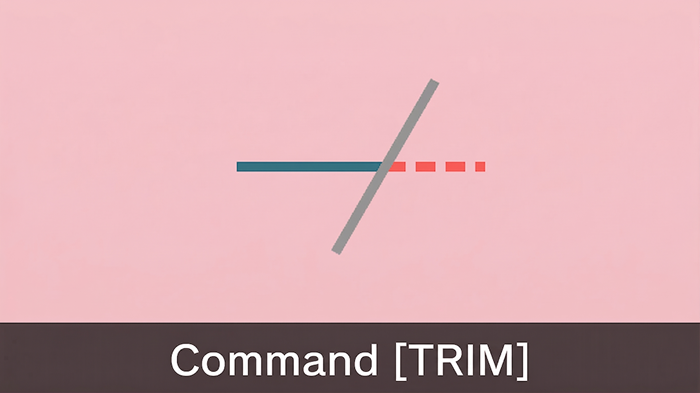
The fastest way to cut overlapping or protruding lines in AutoCAD is the Trim (TRIM) command.
実は、AutoCAD は標準で JWW 形式に対応していません。
DARE ONE なら、JWW から DWG / DXF への高精度な変換がブラウザ上で今すぐ無料で完了!
拡張子の互換性に悩まず、スムーズに作図作業へ移りましょう。

Instead of manually dragging line grips—which is tedious and prone to errors—the Trim tool allows you to select a cutting edge and instantly slice away the excess parts of intersecting objects.
Here is exactly how to use the Trim command, along with advanced options to speed up your drafting workflow.
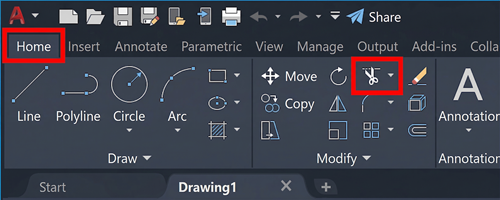
Navigate to the Home tab > Modify panel > click Trim.
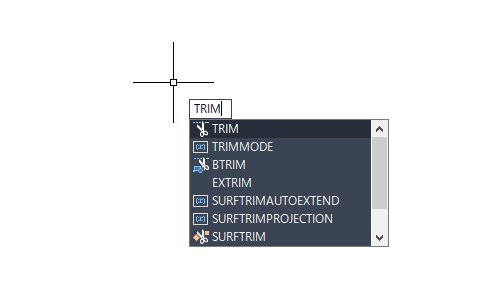
Type TRIM (or the shortcut TR) directly into the command line or workspace and press Enter.
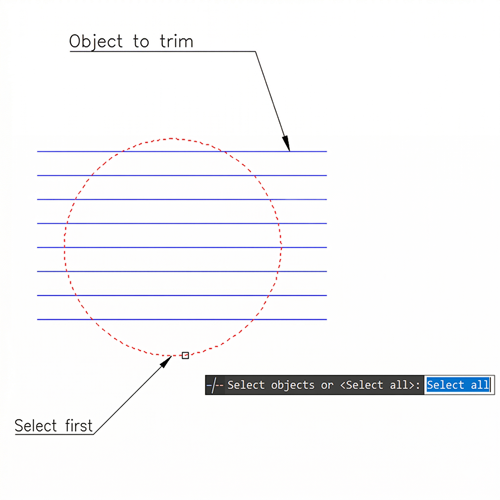
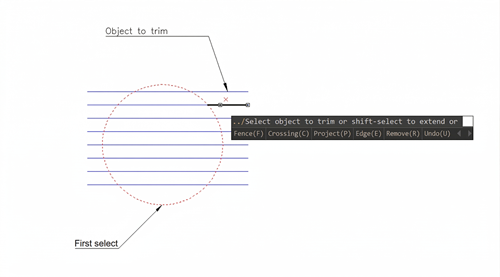
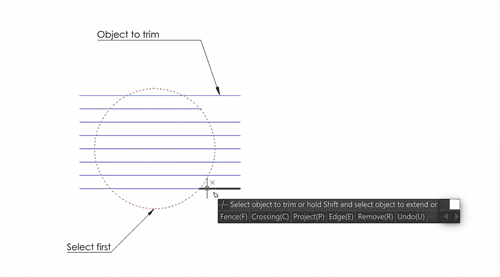
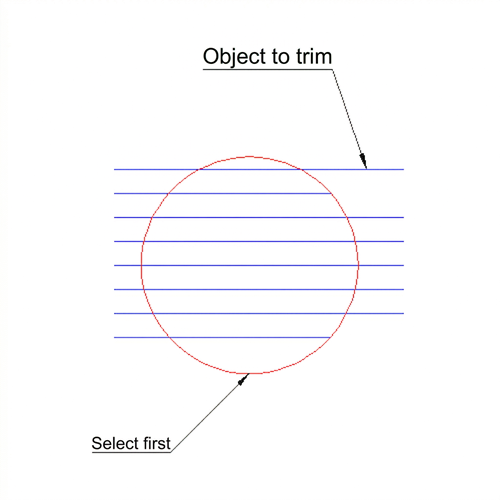

The AutoCAD Trim command offers several built-in options—primarily different selection methods—to help you handle complex linework efficiently. Here is a breakdown of five key ways to use them.
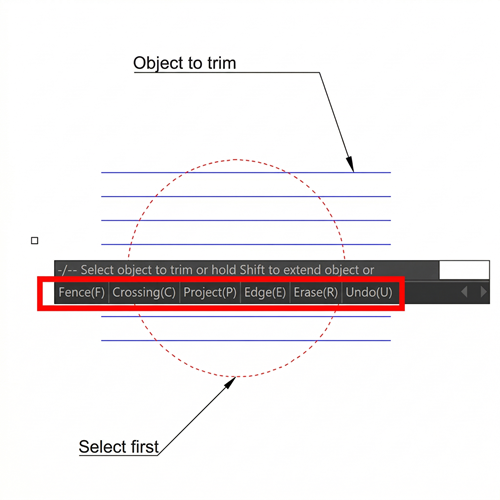
The Fence option allows you to draw a temporary line path. Any object that this fence crosses will be trimmed automatically.
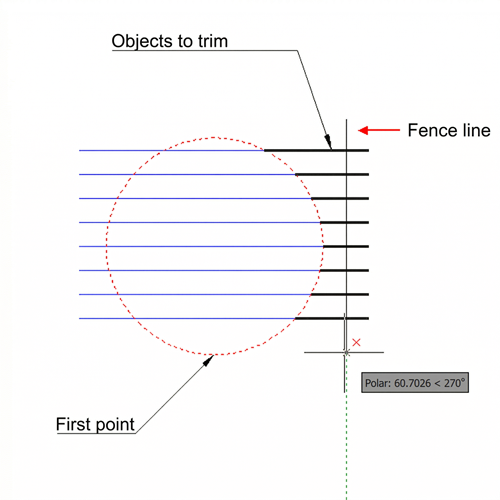
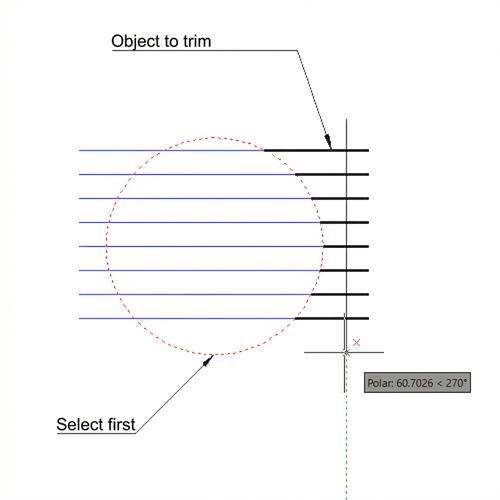
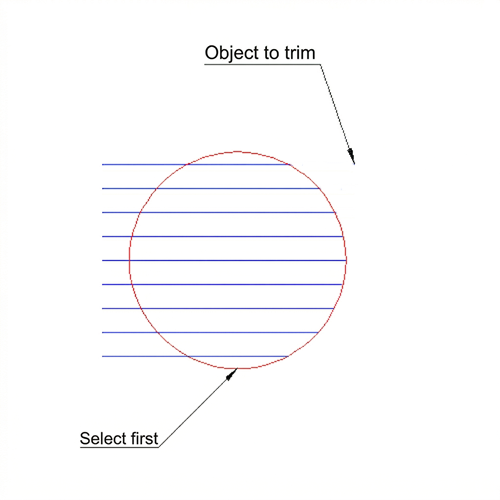
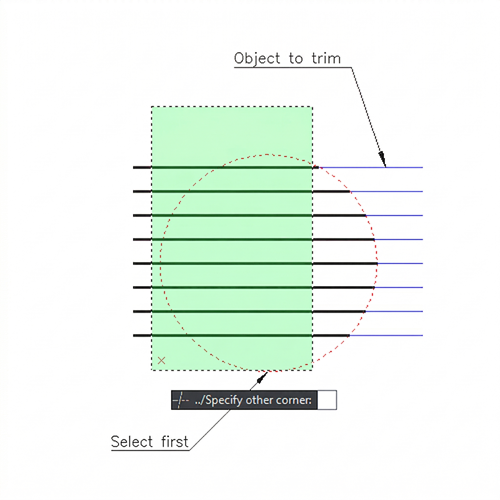
Similar to Fence, the Crossing option lets you draw a rectangular selection window. Any line that touches or falls inside this rectangle is trimmed.
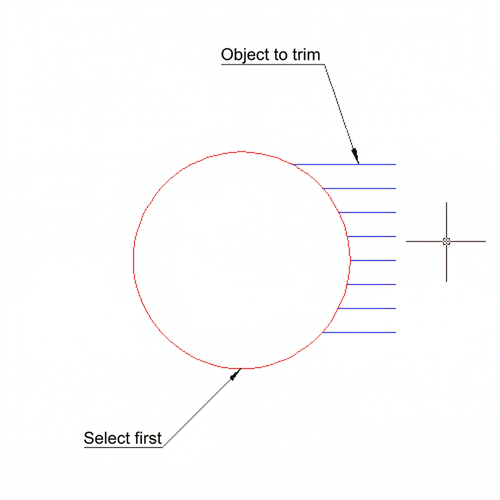
Primarily used in 3D modeling, this mode allows you to trim objects that don't physically intersect in 3D space by changing the view projection.
By default, lines must physically touch to be trimmed. The Edge option allows you to extend the boundary line to a virtual intersection.
For more on virtual intersections, check out our guide: How to Use the Extend Command in AutoCAD.
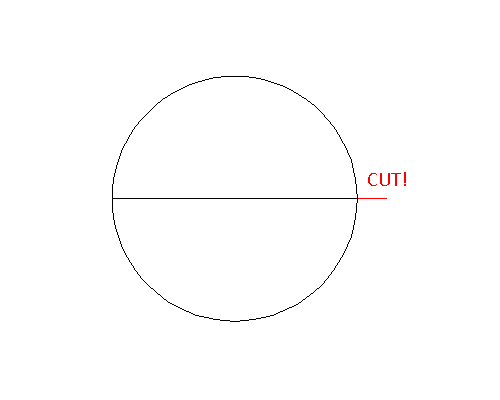
There is another method where you don't manually select a cutting boundary. By skipping the boundary selection, AutoCAD treats every object in your drawing as a cutting edge. This is the fastest way to trim a line to the nearest intersecting object.
You can actually use the Extend command while the Trim tool is still active (and vice versa). Not having to constantly cancel and switch between commands is a massive time-saver.
he Trim tool is arguably one of the most frequently used commands in any CAD designer's daily workflow. By mastering these techniques and shortcuts, you can eliminate tedious manual edits, keep your linework clean, and significantly speed up your overall drafting process.
Once you have cleaned up your linework using the Trim command, the next challenge is often sharing those files without losing layers, corrupting text, or facing version incompatibility errors.
DARE is a professional CAD conversion cloud service designed for engineers and designers. Whether you need to convert DWG to PDF, DXF to STEP, or downgrade to an older AutoCAD version, DARE handles it in seconds directly from your browser—no heavy software required.
Stop wrestling with file errors. Try DARE’s Free CAD Converter Today and streamline your design delivery!

This article was created using a trial version of AutoCAD.
For instructions on how to install the free AutoCAD trial, please see below.



![Free CAD drawing conversion for everyone! What exactly is DARE? [Supports DWG, JWW, and many other formats]](/en/images/recommendService/dare.jpg)
![[Batch convert up to 99 drawings] For large-scale CAD drawing conversion of DWG, DXF, JWW, and PDF, use DARE Converter!](/en/images/recommendService/dareConverter.jpg)
![[Solve it for free now!] How to convert DWG to DXF without using AutoCAD](/en/images/recommendService/dareJw.jpg)