システムメトリックス株式会社
名古屋市中区丸の内 1-15-20 ie丸の内ビルディング 11F
Tel. 052-232-4040 / お電話による受付時間 平日 9:30-17:00(土日祝休)
© 2026 System Metrix Co., Ltd. All Rights Reserved.
Created Date:2021.08.16
Updated Date:2026.05.07
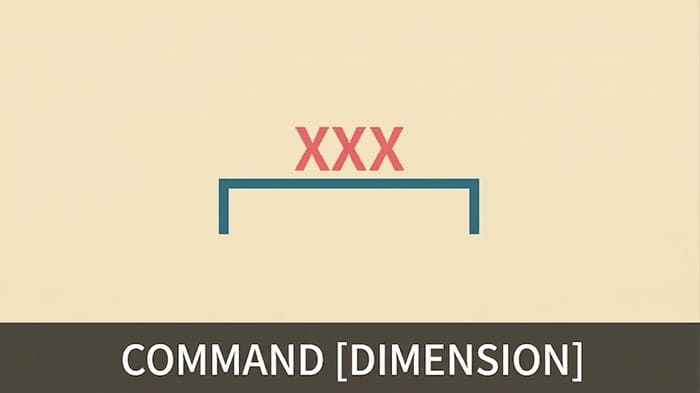
Dimensions are the vital bridge between a digital CAD model and physical manufacturing. They dictate the exact size, spacing, and tolerances required so that parts fit together perfectly on the assembly line or construction site. Without precise dimensioning, even the most meticulously drafted model is useless.
If you are struggling with missing layers, weird scaling, or simply want to master your annotation workflow, this guide will show you exactly how to use AutoCAD dimensions and break down the 8 essential types you need to know.

実は、AutoCAD は標準で JWW 形式に対応していません。
DARE ONE なら、JWW から DWG / DXF への高精度な変換がブラウザ上で今すぐ無料で完了!
拡張子の互換性に悩まず、スムーズに作図作業へ移りましょう。

Before placing a single dimension, you must verify your drawing units. One of the most common errors in global engineering is a mismatch between Metric (mm) and Imperial (inches) units.
In AutoCAD, dimensions generally do not display the unit symbol (e.g., a line measuring "50" means 50mm in a metric drawing, or 50 inches in an imperial one). Always type UNITS into your command line before dimensioning to ensure your insertion scale and measurement type match your project's global standard.
AutoCAD offers three primary ways to access dimension tools. Using keyboard shortcuts (Command Line) is the fastest method for experienced drafters.
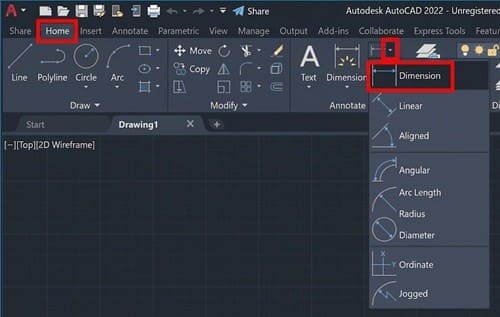
Navigate to Home tab > Annotation panel and click the drop-down menu next to the Linear Dimension icon.
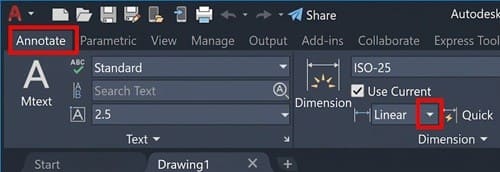
Navigate to Annotate tab > Dimensions panel and use the drop-down menu.
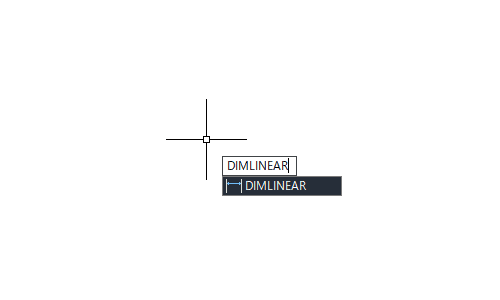
Type DIM or specific commands like DIMLINEAR directly into the command line.
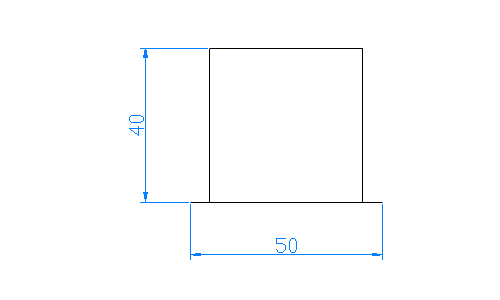
AutoCAD features 8 distinct dimension types to handle any geometric shape. Here is how and when to use each one:
DIMLINEAR will not give you the true length. DIMALIGNED creates a dimension line parallel to the slanted object you are measuring, ensuring accurate diagonal measurements.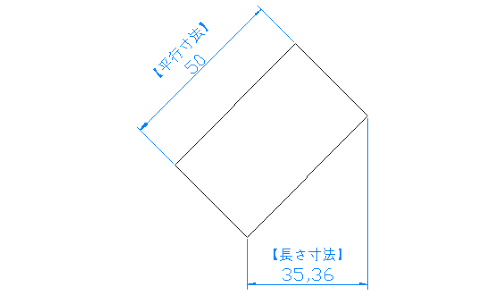
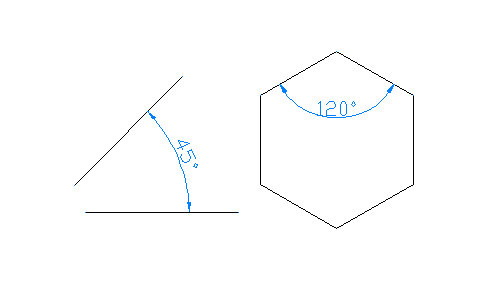
DIMARC calculates the actual length along the curve of an arc. AutoCAD automatically adds an arc symbol (⌒) in front of the dimension value to distinguish it from standard linear dimensions.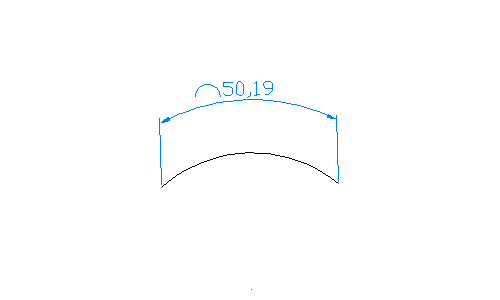
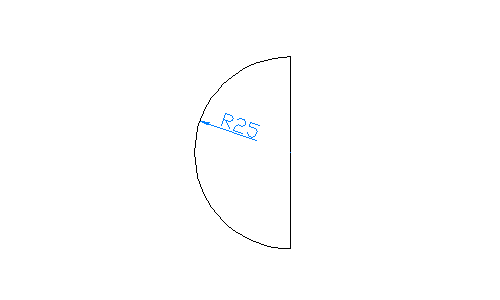
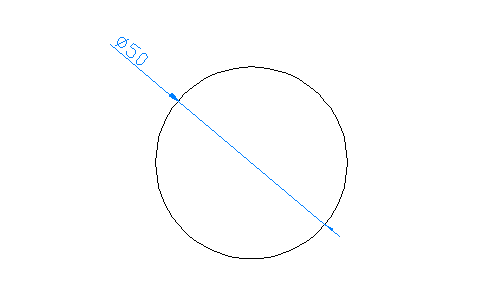

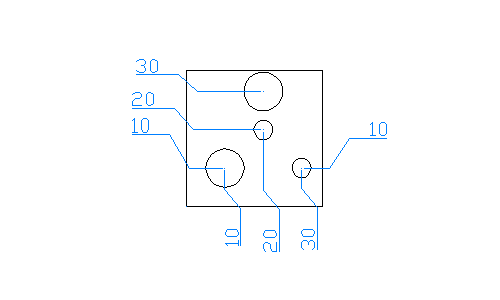
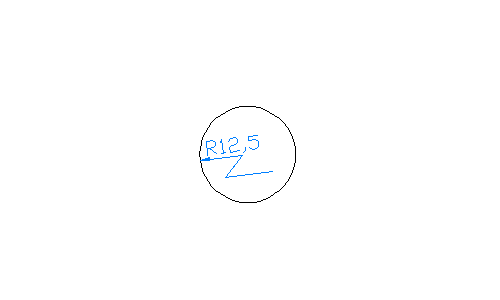
In this guide, we covered the 8 essential dimension commands in AutoCAD. By choosing the right dimension type, you can create clean, easy-to-read blueprints. For more handy drafting tips, be sure to check out our other tutorials in the Dimensions Category.
Mastering these 8 dimension commands will guarantee your drafts are accurate, professional, and easy to read. However, drawing accuracy means nothing if your client or manufacturer cannot open your files due to version errors or missing layers.
Are you dealing with DWG compatibility issues, missing layers, or garbled text when sharing CAD files?
Don't let file formatting slow down your engineering process. DARE is a professional cloud-based CAD conversion platform designed to eliminate the headache of cross-platform drafting.
・Seamless Conversions: Convert DWG to PDF, DXF to DWG, or seamlessly downgrade newer AutoCAD files to legacy versions in seconds.
・Preserve Your Data: Maintain perfect dimension scales, layer structures, and text encodings during every conversion.
・No Installation Required: Access your 2D CAD viewer and converter directly from your web browser.
Try DARE for Free Today and experience completely hassle-free CAD file conversions!
This article was created using the AutoCAD free trial.
Check out the link below to learn how to install the free AutoCAD trial.





![Free CAD drawing conversion for everyone! What exactly is DARE? [Supports DWG, JWW, and many other formats]](/en/images/recommendService/dare.jpg)
![[Batch convert up to 99 drawings] For large-scale CAD drawing conversion of DWG, DXF, JWW, and PDF, use DARE Converter!](/en/images/recommendService/dareConverter.jpg)
![[Solve it for free now!] How to convert DWG to DXF without using AutoCAD](/en/images/recommendService/dareJw.jpg)