Created Date:2021.08.12
Updated Date:2026.04.13
Switching to an AutoCAD alternative doesn't have to disrupt your design workflow. If you need to cut heavy subscription costs but still require flawless DWG compatibility, modern AutoCAD-compatible software (like IJCAD) offers a nearly identical user experience.
In this guide, we skip the fluff and show you exactly how to navigate an AutoCAD alternative. You will learn how to set up your drawing, manage layers, draft a basic framework, and securely export your files to PDF.
DARE はブラウザだけで DWG・DXF・JWW・PDF などを相互変換・バージョンダウンができる無料サービスです。
ソフトのインストールも、面倒な待ち時間も不要。今すぐ変換して業務を再開しましょう!
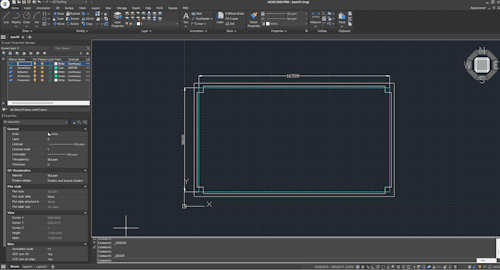
Before diving into the operations, here is why many professional engineers and designers are making the switch:
An organized file prevents missing lines and garbled data later in your project lifecycle. Let’s set up a clean foundation.
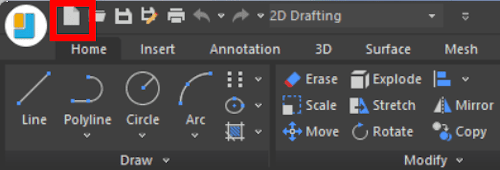
gcadiso.dwt (or equivalent acadiso.dwt).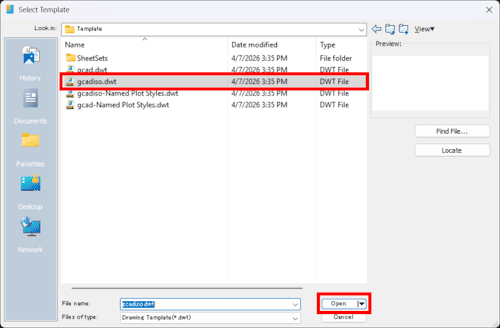
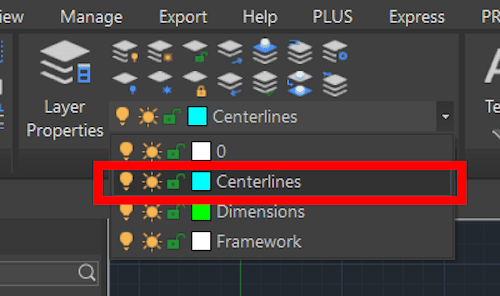
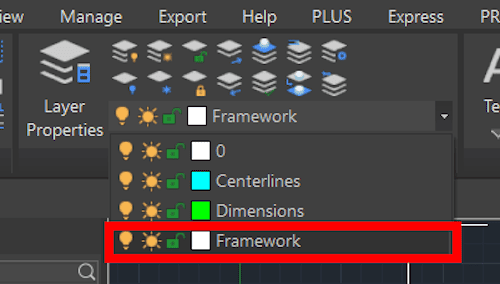
Separating your structural elements ensures safe, editable exports.

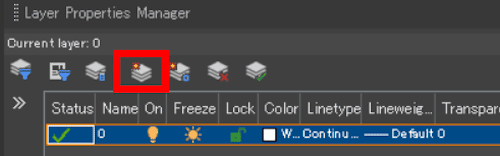
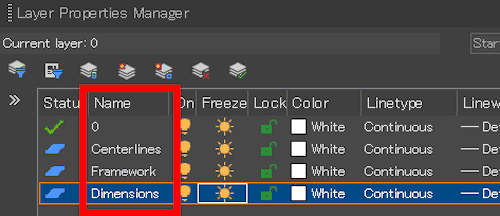
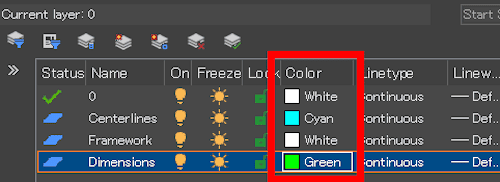
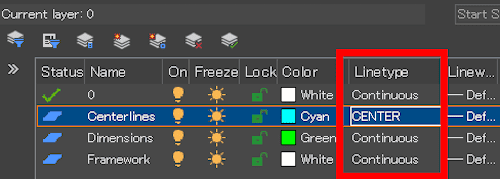
Let's try some simple drafting in IJCAD.
This time, we will draw a basic structural plan using IJCAD.
REC (Rectangle) and press Enter.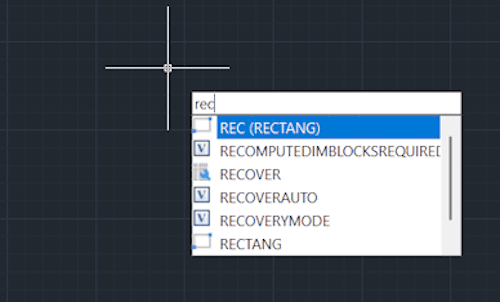
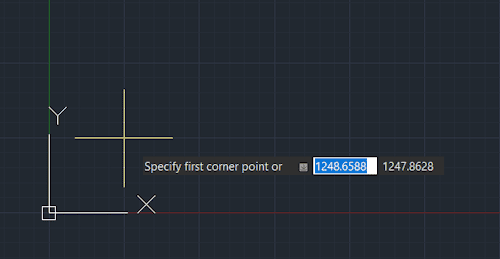
16500,9000 and press Enter.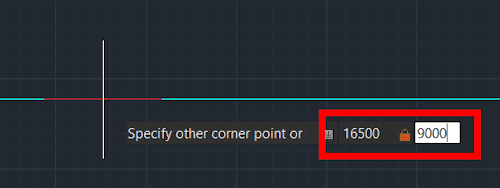
REC, click a starting point, and type @800,800 to create a column.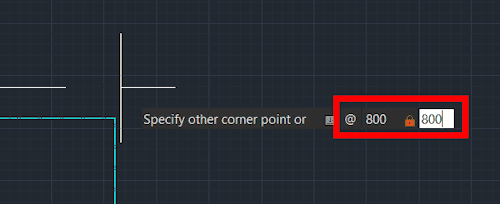
MOVE and select the column.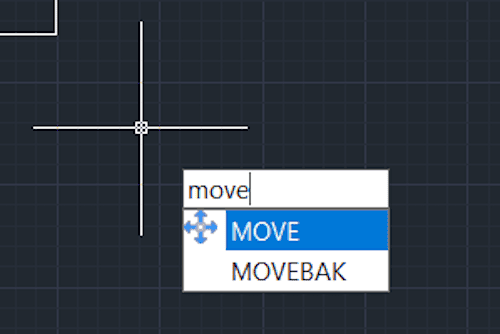
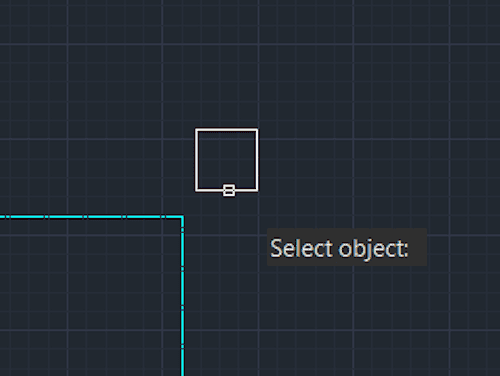
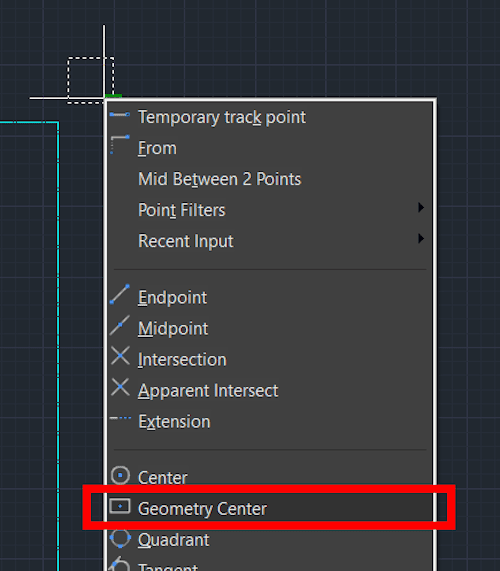
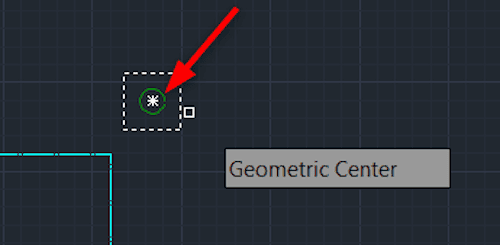
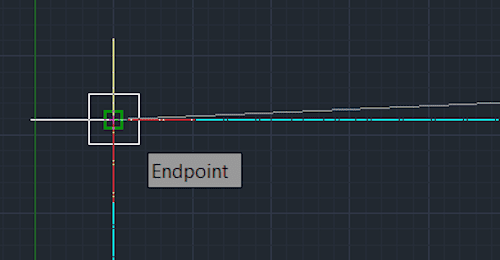
COPY, select your placed column, and hit Enter.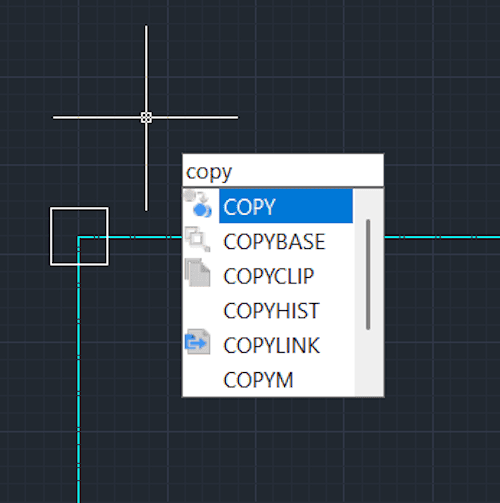
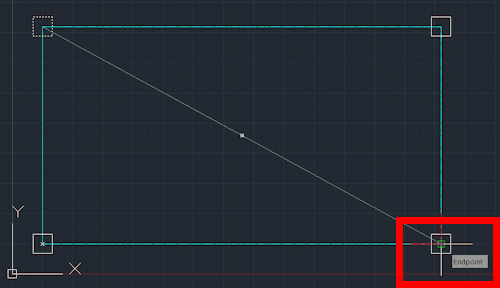
LINE to draw the exterior walls.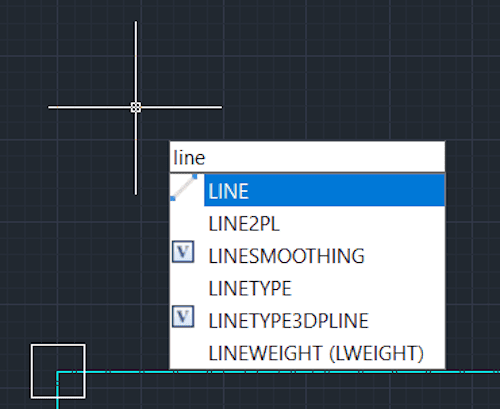
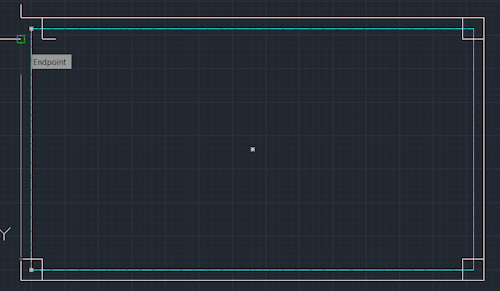
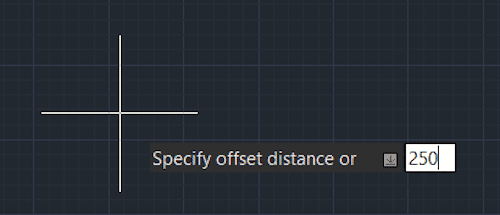
OFFSET to create the interior wall line.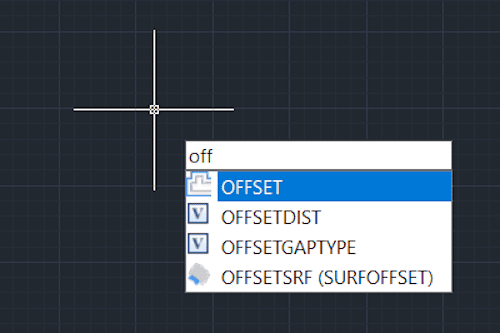
250.
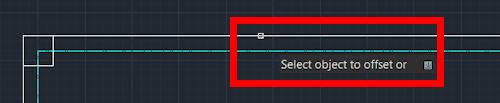
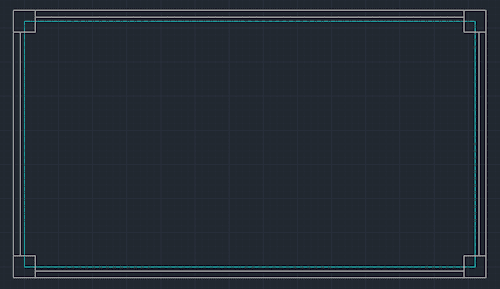
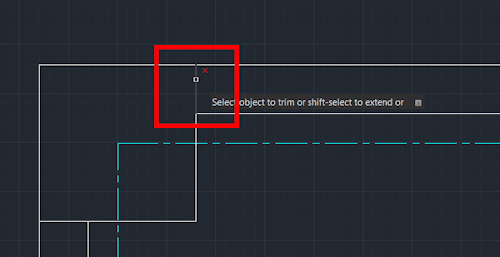
TRIM to clean up the drawing.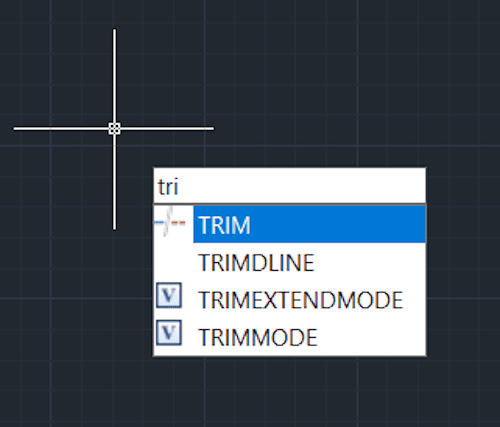
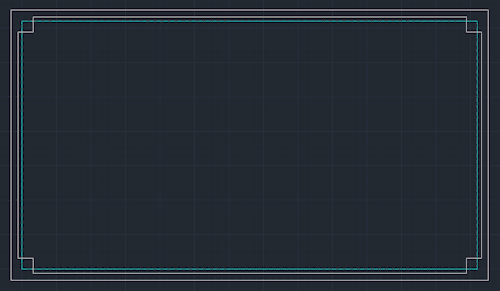
Sharing your work with clients or contractors requires a clean, standard PDF export.
PRINT (or PLOT) and hit Enter.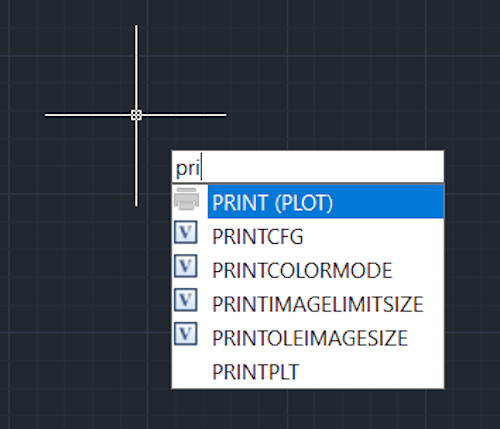
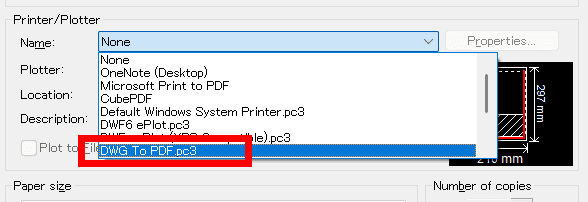
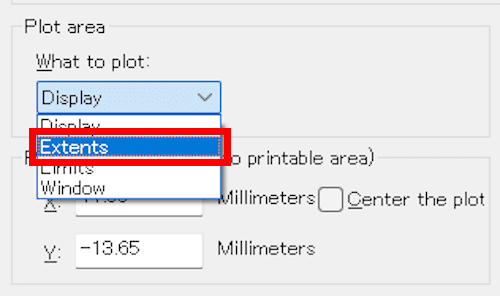
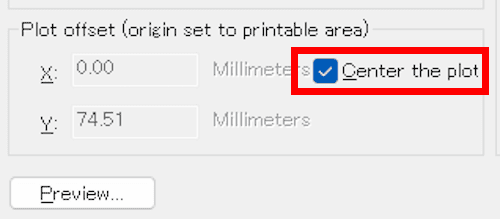
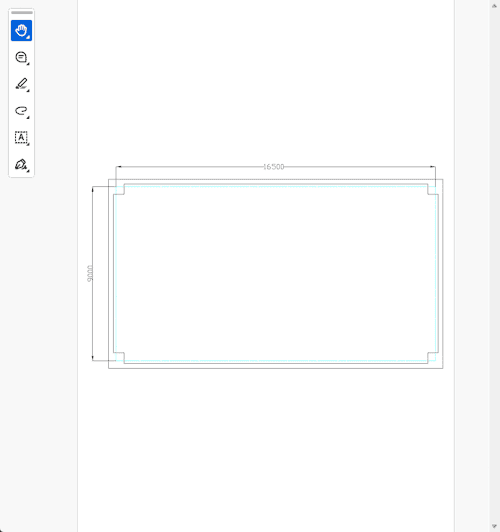
You have successfully exported your drawing to PDF.
Offering flawless AutoCAD compatibility at a fraction of the cost, an AutoCAD alternative software like IJCAD can drastically reduce your overhead without disrupting your design workflow. Why not experience the performance for yourself?
Unlock all premium features and test the software in your own environment with a 14-day free trial.
Visit the Official IJCAD Website Here
Drafting in an alternative CAD program is simple, but sharing files across different software versions and global teams can still cause headaches. If you constantly battle missing layers, garbled text, or "Incompatible Version" errors when opening client files, you need a dedicated conversion solution.
DARE is a professional cloud-based CAD conversion tool designed for engineers. Whether you need to safely downgrade a 2024 DWG to an older version, convert 2D data to DXF, or transform complex vector paths to high-fidelity PDFs and STEP files, DARE handles it flawlessly in seconds.
Stop losing billable hours to file format issues. Try DARE's free conversion tools today and streamline your global CAD workflow.