システムメトリックス株式会社
名古屋市中区丸の内 1-15-20 ie丸の内ビルディング 11F
Tel. 052-232-4040 / お電話による受付時間 平日 9:30-17:00(土日祝休)
© 2026 System Metrix Co., Ltd. All Rights Reserved.
Created Date:2021.09.15
Updated Date:2026.04.16
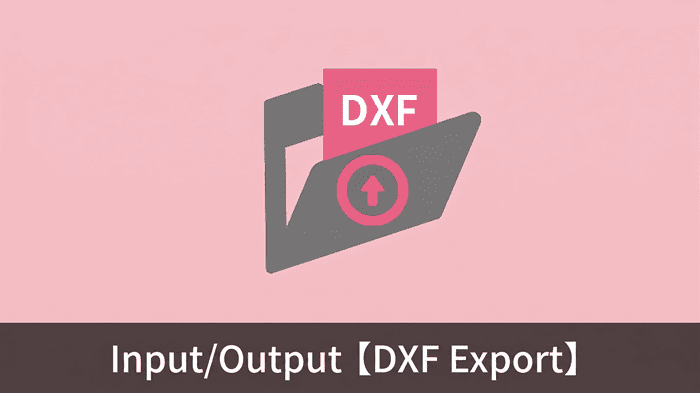
Whether you need a 2D profile for a laser cutter or a floor plan to send to an AutoCAD user, exporting a DXF file from Autodesk Fusion 360 is a routine task.
The short answer: To export a DXF, simply navigate to File > Export, select DXF from the dropdown menu, and hit save.
However, many engineers encounter a frustrating issue where the DXF format is "greyed out" and unselectable. This guide walks you through the standard export process and shows you exactly how to fix the greyed-out format error by utilizing cloud translation.
If your design is already synced to your Fusion 360 cloud workspace, exporting a DXF takes just a few clicks. Both Personal and Commercial licenses support this feature.
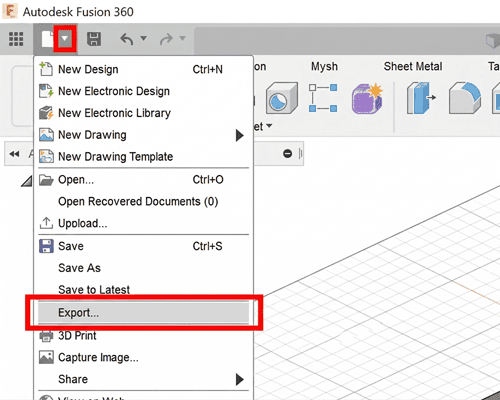
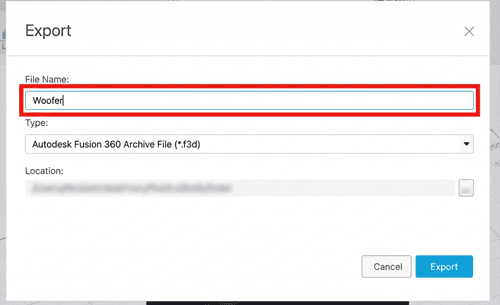
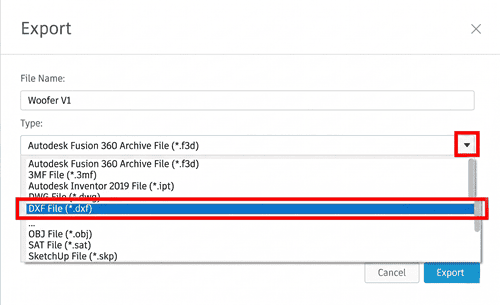
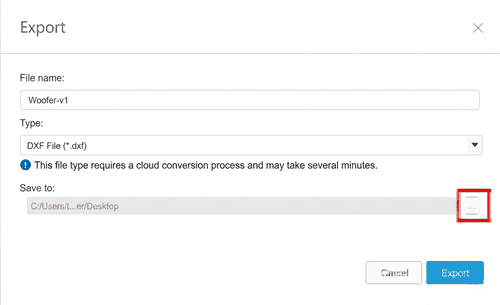
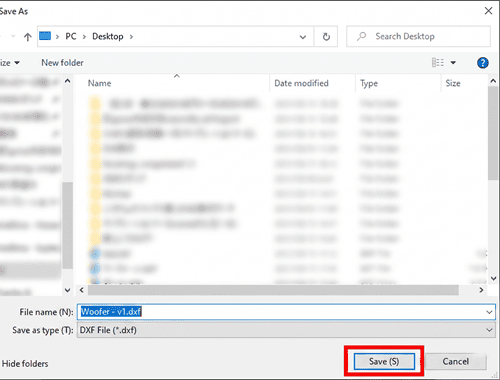
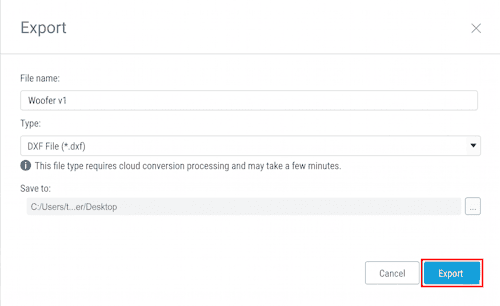
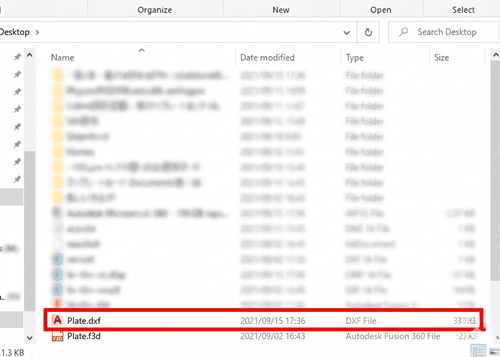
The Problem: Fusion 360 relies on Autodesk's cloud servers to perform complex file translations—like converting native 3D geometry into a flat 2D DXF. If your design is currently only saved locally on your hard drive, the software cannot process the translation, leaving the DXF option greyed out.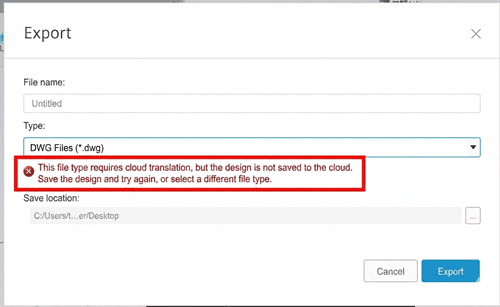
The Solution: You must upload and save the file to your Fusion cloud project first.
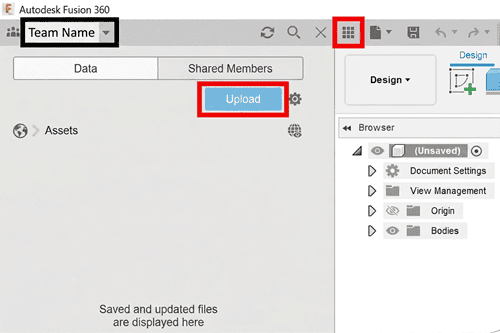
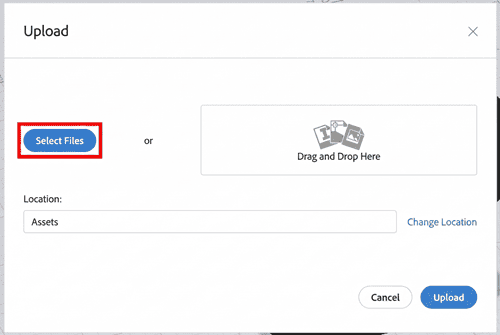
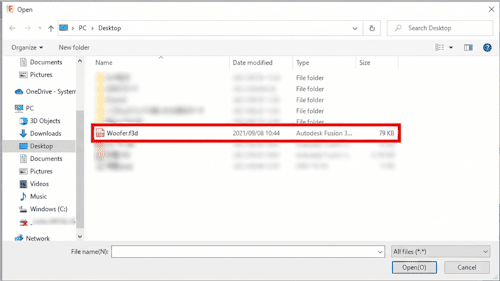
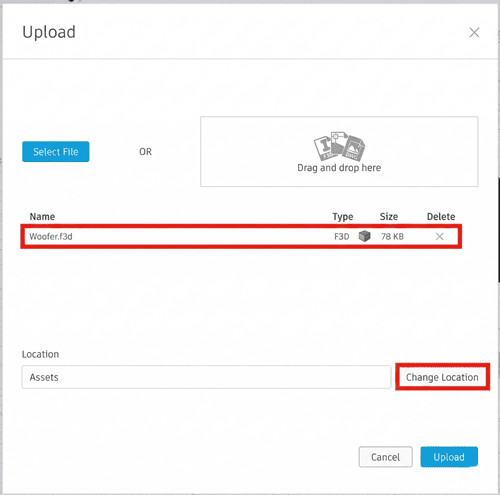
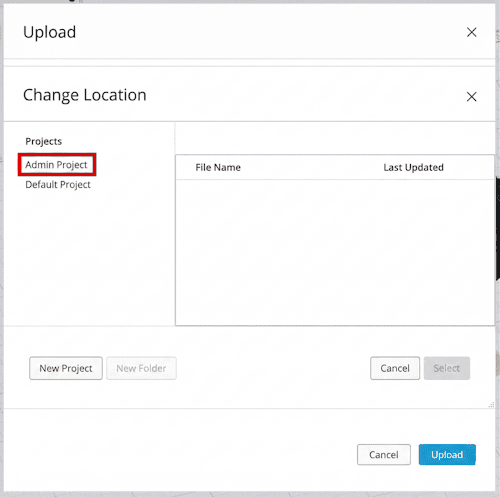
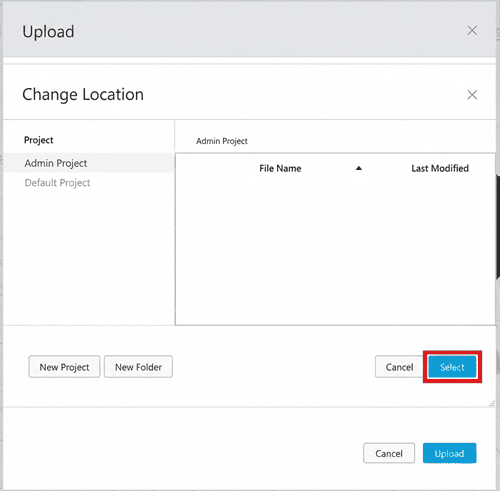
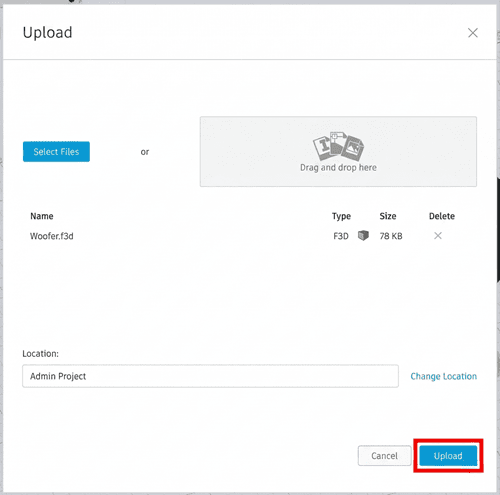
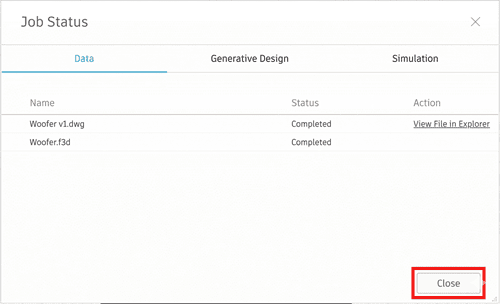
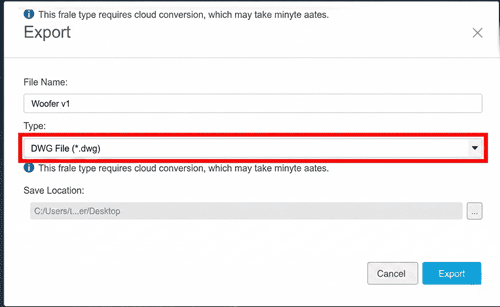
(Note: Files saved to your Fusion 360 cloud are completely secure and only visible to team members you specifically authorize).
Exporting a DXF from Fusion 360 is simple, but what happens when you send that file to a fabricator or an AutoCAD user, and they complain about missing layers, scaled dimensions, or corrupted splines? Cross-platform CAD translation often breaks geometry, leading to hours of manual cleanup.
Eliminate file translation errors today. DARE is a highly accurate, cloud-based CAD conversion platform built for engineering professionals. Whether you need to downgrade a 2024 DWG to an older version, or seamlessly convert complex PDFs and STEP files into clean, layered DXFs, DARE ensures your geometry remains intact.
Sign up for a free DARE account today and ensure your 2D/3D CAD conversions are 100% accurate!
Sign up for a free DARE account today and ensure your 2D/3D CAD conversions are 100% accurate!


![[Free] Convert raster images to CAD data in just one step.](/en/images/recommendService/dareRaster.png)
![[Free] View DWG, JWW, and 3D drawings easily on your smartphone or tablet! [DARE BOX Mobile recommended]](/en/images/recommendService/dareBoxMobile.jpg)
![Free CAD drawing conversion for everyone! What exactly is DARE? [Supports DWG, JWW, and many other formats]](/en/images/recommendService/dare.jpg)