Created Date:2026.06.26
Updated Date:2026.06.26
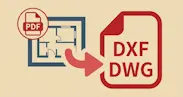
"A client sent me the drawing as a PDF, but I need to edit it in DWG (AutoCAD format)." It's one of the most common headaches in any CAD workflow. PDF is great for sharing and printing—but you can't edit its lines, dimensions, or text.
This guide shows you two reliable ways to convert PDF to DWG: a free online converter (no software) and AutoCAD's built-in PDFIMPORT. More importantly, it explains the two things that ruin most conversions—the scale problem and vector vs. raster PDFs—so your converted file is actually usable.
実は、AutoCAD は標準で JWW 形式に対応していません。
DARE ONE なら、JWW から DWG / DXF への高精度な変換がブラウザ上で今すぐ無料で完了!
拡張子の互換性に悩まず、スムーズに作図作業へ移りましょう。
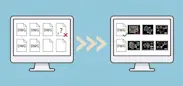
The single biggest factor in conversion quality is whether your PDF is vector or raster. Understanding this up front saves you from the classic "why won't the lines come through?" frustration.
In short: a vector PDF exported from CAD software converts cleanly, while a scanned PDF needs a converter's image-to-CAD (vectorization) feature.
If you don't own AutoCAD, or you just need to convert a single file right now, a browser-based free converter is the fastest route. The steps are the same across most services:
Most of these tools need no installation and no sign-up. The trade-off is accuracy: free converters often produce garbled text, dimension drift, flattened layers, or simply fail on raster PDFs. The more important the drawing, the more carefully you should verify the scale and dimensions afterward.

If you're running AutoCAD 2017 or later, the built-in PDFIMPORT command brings a PDF straight into your drawing:
PDFIMPORT turns a vector PDF into native AutoCAD geometry, giving you more control than a generic online converter. One caveat: text drawn with SHX fonts (AutoCAD's own fonts) is imported as line work and may not be editable as real text.
By far the most common conversion issue is that the scale comes out wrong. A PDF only stores the size on the sheet—it loses the real-world scale (1:100, etc.) of the original drawing.
The fix is to use one known dimension to rescale the whole drawing:
When using PDFIMPORT, if you know the scale the original PDF was created at, enter it in the scale field during import to save yourself this cleanup later.
| Source PDF | Convertible? | Notes |
|---|---|---|
| Vector PDF exported from CAD | ◎ High accuracy | Lines, text, and dimensions rebuild as editable objects |
| Vector PDF from Illustrator, etc. | ○ | Lines come through, but not as CAD-style layers |
| Scanned paper drawing (raster PDF) | △ Needs vectorization | Requires an image-to-CAD (trace) feature |
| PDF that's just a pasted photo/image | △–× | Depends on image-recognition (vectorization) quality |
To turn a scanned PDF or paper drawing into DWG, you need a service that supports raster-to-vector conversion (image-to-CAD), not just a plain format converter.
And if the converted DWG won't open in an older AutoCAD, you'll need to lower its version. → How to Convert AutoCAD (DWG) to a Lower Version
Q. Can I convert PDF to DWG without AutoCAD?
A. Yes. A browser-based free online converter will turn a PDF into DWG or DXF with no software to install.
Q. The text in my converted DWG isn't editable. Why?
A. If the original PDF used SHX fonts or outlined text, it's imported as line work. To get editable text, use a converter with OCR (text recognition), or retype it.
Q. Can I convert a scanned paper drawing to DWG?
A. Not with a standard PDF-to-DWG conversion. You need an "image-to-CAD" (vectorization) feature designed for scanned drawings.
DARE is a cloud CAD conversion service that runs entirely in your browser—no heavy software to install. It handles PDF to DWG / DXF, DWG ⇔ JWW, and even downgrading to an older AutoCAD version, all online.
Stop fighting with files that won't open or formats that don't match. Try DARE's Free CAD Converter and make sharing CAD drawings effortless.