Created Date:2021.08.12
Updated Date:2026.04.16
Experiencing crashes, corrupted workspaces, or persistent glitches with your CAD software? Often, performing a clean uninstallation and reinstalling the software is the fastest way to resolve these critical errors.
This guide provides a straightforward, step-by-step process to completely remove IJCAD from your Windows 11 machine. We will also cover the vital step of wiping residual AppData configuration files—a common culprit for carrying over old bugs into fresh installations.

DARE はブラウザだけで DWG・DXF・JWW・PDF などを相互変換・バージョンダウンができる無料サービスです。
ソフトのインストールも、面倒な待ち時間も不要。今すぐ変換して業務を再開しましょう!

To fix immediate app performance issues or simply free up system space, start with the standard Windows 11 removal process.
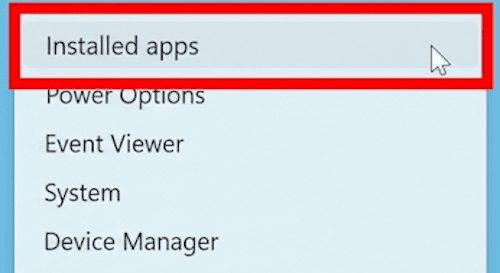
Right-click the Start button on your Windows taskbar.
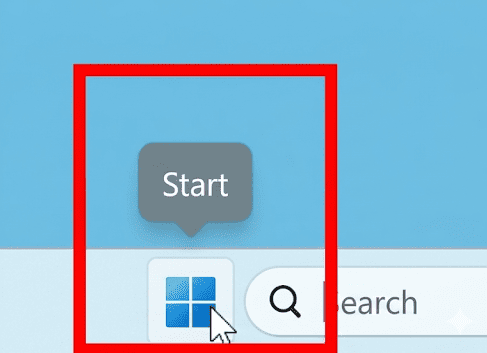
Select Installed apps from the context menu.
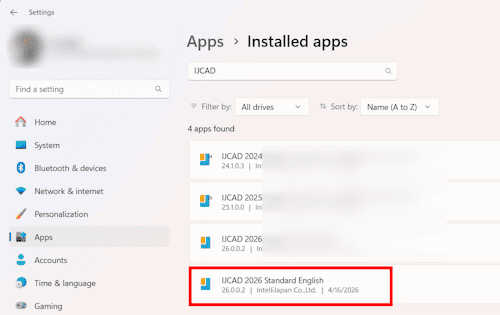
Locate IJCAD in your application list. (You can also type "IJCAD" into the search bar at the top to find it faster).
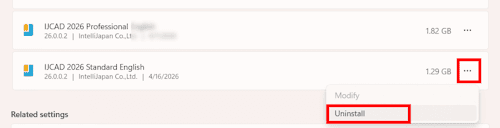
Click the three-dot menu (...) on the right side of the IJCAD listing and select Uninstall.
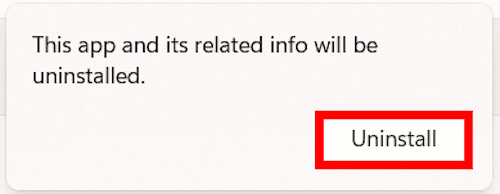
A confirmation pop-up will appear stating that the app and its related info will be uninstalled. Click Uninstall again.
If prompted by Windows User Account Control (UAC), click Yes.
The IJCAD uninstaller dialog will launch. Click Yes to proceed.
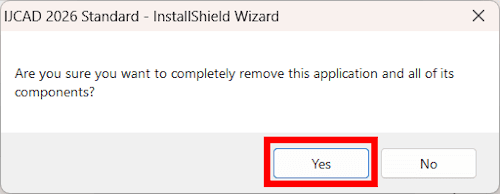
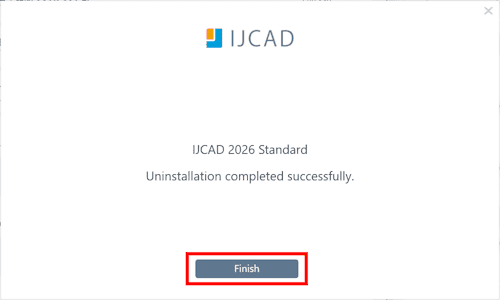
Wait for the automated process to finish. Once you see the final completion dialog, the core application has been successfully removed from your system.
Even after a successful standard uninstall, Windows leaves behind user configuration files (like your customized CUI settings). While this is helpful if you are simply upgrading versions and want to keep your UI layout, these leftover files are often the root cause of persistent CAD errors.
If you are uninstalling due to software instability, you must delete this hidden folder to ensure a truly clean slate.
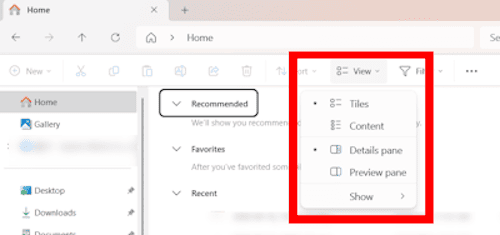
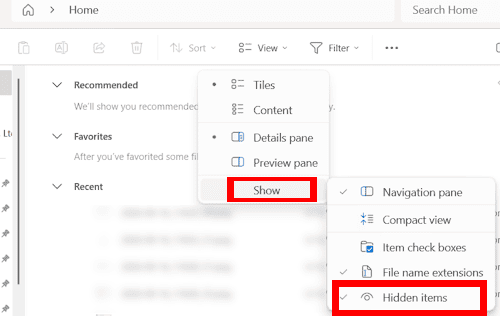
C:\Users\(Your Username)\AppData\Roaming\IntelliJapan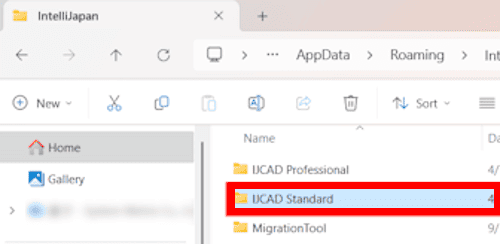
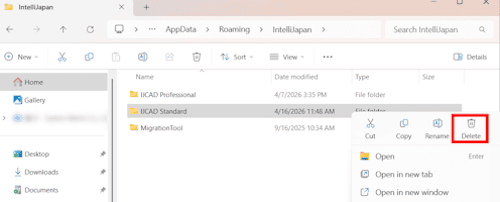
⚠️ Professional Warning: Be extremely careful to only delete the folder for the version you just uninstalled. If you accidentally delete the settings folder for an active, working version of your CAD software, it will reset all your toolbars, shortcuts, and custom UI elements to their factory defaults upon the next launch.
Dealing with format incompatibilities, missing layers, or version-compatibility errors after changing your CAD environment?
DARE is a professional cloud-based CAD conversion platform built for engineers and designers. Whether you need to accurately convert PDF to DWG with layers intact, standardise legacy DXF files, or ensure perfect compliance with global 2D/3D standards (DWG, DXF, PDF, STEP), DARE processes your data flawlessly in the cloud—no heavy software required.
Don't let file conversion bottleneck your design workflow. Try DARE's free CAD conversion tools today and experience industry-leading accuracy.