システムメトリックス株式会社
名古屋市中区丸の内 1-15-20 ie丸の内ビルディング 11F
Tel. 052-232-4040 / お電話による受付時間 平日 9:30-17:00(土日祝休)
© 2026 System Metrix Co., Ltd. All Rights Reserved.
Created Date:2021.09.21
Updated Date:2026.04.13
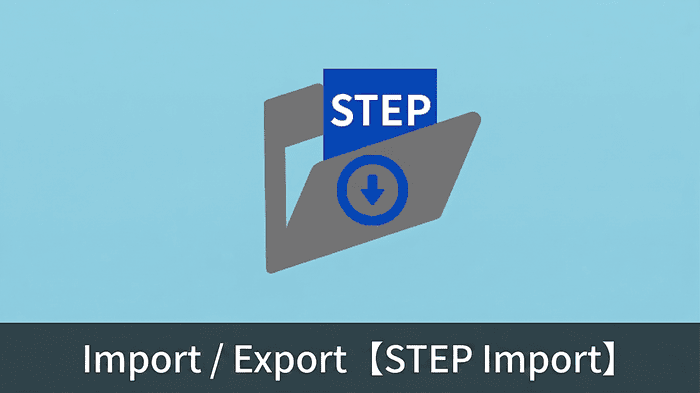
Importing a STEP file into Autodesk Fusion 360 is an essential workflow for engineers collaborating across different CAD platforms. Fortunately, both the Personal (Free) and Commercial (Paid) licenses natively support STEP file translation.
Here is the fastest way to open a STEP file and get your 3D model onto the canvas.

Fusion 360 で作成したデータを協力会社や加工現場に渡す際、相手の環境に合わせて形式を整えるのは手間ですよね。
DARE を使えば、書き出した DXF や STEP をブラウザから直接 DWG・JWW に変換できます。
相手が AutoCAD でも Jw_cad でも、これ一つでシームレスな連携が実現します。
To open a STEP file as a new active document on your local machine, follow these instructions:
Launch Fusion 360, click the File icon (dropdown menu) in the top-left corner of the interface, and select Open.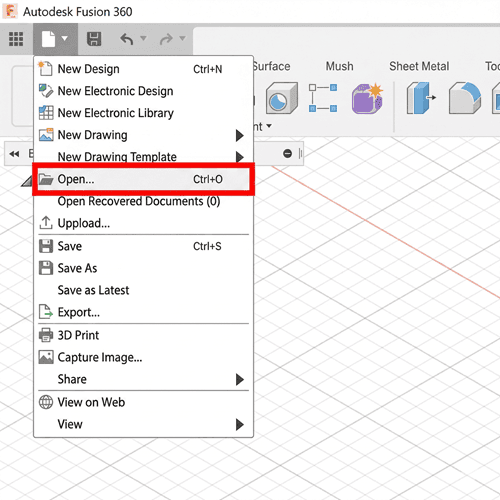
A dialog box will appear displaying your Fusion cloud projects. To upload the file from your hard drive, click the Open from my computer button at the bottom left.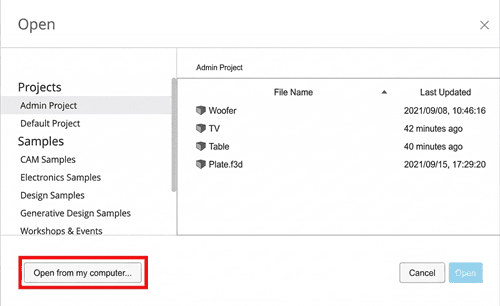
Locate your target file (ending in .step or .stp), select it, and click Open.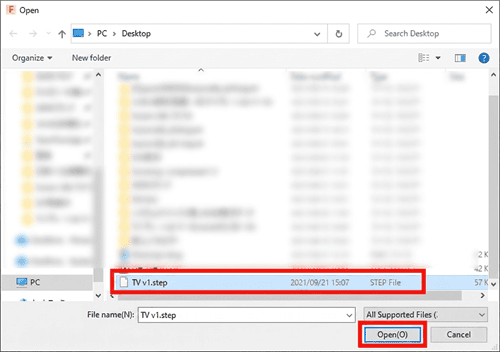
Fusion 360 will automatically translate the geometry and open it as a solid body in a new workspace tab.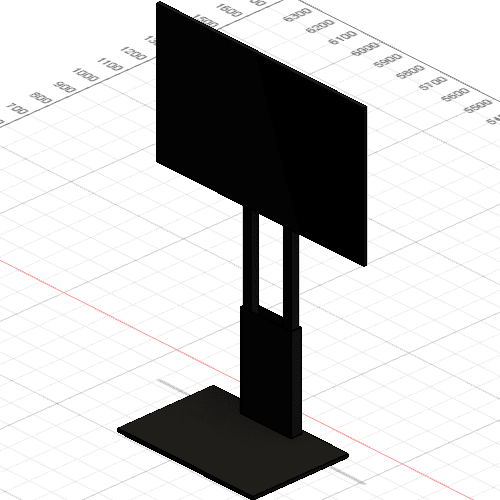
Pro Tip: If you want to insert a STEP file into a design you are already working on, do not use the "Open" command. Instead, use the Data Panel to upload the STEP file to your project folder first, then right-click the uploaded file and select Insert into Current Design.
STEP stands for Standard for the Exchange of Product model data. It is an ISO-standardized 3D file format designed specifically to share 3D models between different CAD programs (like SOLIDWORKS, CATIA, Inventor, and Fusion 360) without losing mathematical accuracy.
Because proprietary native files (like an .sldprt from SOLIDWORKS) cannot always be opened directly by other software, engineers rely on neutral intermediate files like STEP to bridge the gap.
Other common neutral file formats you might encounter include:
.iges / .igs, .x_t (Parasolid).dxf, .dwgUnlike mesh formats (such as STL or OBJ) which approximate surfaces using triangles, STEP files retain parametric solid body data, making them much easier to measure, edit, and manufacture.
While STEP is a highly reliable format, importing 3D data from legacy software can sometimes result in "surface bodies" instead of solid geometry, missing faces, or unit scaling errors. Furthermore, if you need to extract a clean 2D manufacturing drawing (DXF/DWG) from a complex 3D STEP file, the native export tools in many CAD programs can be clunky and inaccurate.
Stop wasting hours manually repairing broken geometries. DARE provides lightning-fast, highly accurate cloud conversions for engineering professionals. Seamlessly translate between industry-standard 2D and 3D formats—including DWG, DXF, PDF, STEP, and IGES—ensuring your layers, scales, and solid bodies remain perfectly intact.
Sign up for a FREE DARE account today and streamline your CAD file conversions in seconds!



![[Free] Convert raster images to CAD data in just one step.](/en/images/recommendService/dareRaster.png)
![[Free] View DWG, JWW, and 3D drawings easily on your smartphone or tablet! [DARE BOX Mobile recommended]](/en/images/recommendService/dareBoxMobile.jpg)