Created Date:2026.04.21
Updated Date:2026.05.08
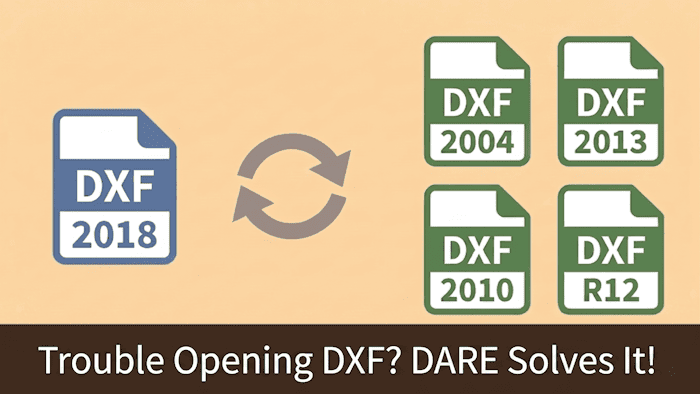
You receive a DXF file from a client or vendor, try to import it, and are immediately hit with an error: "Invalid or incomplete DXF input" or "Press ENTER to continue." Your workflow halts instantly.
Requesting the sender to re-export the file in a different format wastes valuable time. Fortunately, you do not need to wait.
If you want to troubleshoot the issue locally, read on to discover exactly how to fix DXF errors and why they happen in the first place.
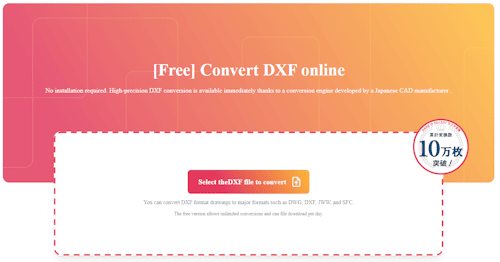
This kind of trouble can be resolved instantly in your browser with the free CAD conversion tool "DARE" — no software installation required.
💡 No software needed — just drag & drop to convert
Convert Your DXF File Now for Free

DARE はブラウザだけで DWG・DXF・JWW・PDF などを相互変換・バージョンダウンができる無料サービスです。
ソフトのインストールも、面倒な待ち時間も不要。今すぐ変換して業務を再開しましょう!

Depending on your available tools and software, use one of the following methods to bypass the error and open your drawing.
If you cannot reach the original sender or lack the time to troubleshoot, run the file through a third-party conversion tool.
Uploading an unreadable DXF to an online CAD converter and outputting it as a fresh DWG or older-version DXF essentially rewrites the file. This process strips out conflicting proprietary data and organizes the internal text structure, allowing your CAD software to open it smoothly.
💡 No software needed — just drag & drop to convert
Convert Your DXF File Now for Free

If the file suffers from minor data corruption, your CAD software might be able to repair it automatically.
Open a blank drawing in AutoCAD (or your compatible CAD software). Type the RECOVER command into the command line and hit Enter. Select the problematic DXF file. The software will scan the drawing database, attempt to repair any logical errors, and open the recovered geometry.
If you are in direct contact with the sender, ask them to "Save As" an older version of the DXF format.
Requesting an AutoCAD R12/LT2 DXF is the safest bet. The Release 12 format is universally recognized across almost all 2D and 3D CAD platforms, CNC machines, and vector graphics software. It strips away advanced, software-specific features that often cause compatibility roadblocks.
Because DXF is essentially a plain-text file, you can open it using a standard text editor like Notepad (Windows) or TextEdit (Mac).
If your CAD software specifies the exact line number where the error occurred (e.g., “Error in line 1450”), open the DXF in your text editor, navigate to that line, and look for formatting anomalies. Deleting random whitespace, fixing garbled characters, or removing the specific block of code can sometimes force the file to open.
DXF (Drawing Exchange Format) was created to share data across different CAD programs. While it is an industry standard, it is not flawless. When errors occur, they usually stem from one of four core issues.
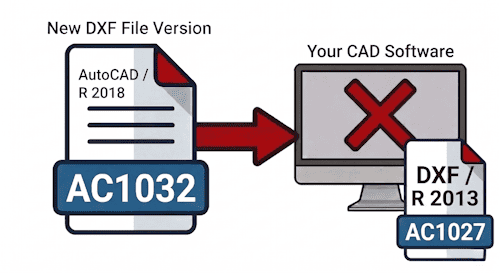
This is the most common culprit. DXF files update alongside CAD software releases (e.g., 2018 format, 2013 format, 2004 format). If a vendor exports a DXF from the newest version of AutoCAD and you attempt to open it in older software, the system cannot parse the newer formatting standards, resulting in an immediate read error.
Software developers often embed proprietary features into their CAD programs. If a drawing contains highly advanced 3D nodes, proxy entities, or unique spline curves native only to the sender's software, your program will fail to interpret that data during the import process.
DXF files consist of thousands of lines of text. When files cross borders or operating systems (especially between Mac and Windows), the text encoding (such as UTF-8) can get scrambled. This mismatch translates to garbled text strings within the code, breaking the file structure and triggering an "invalid data" error.
Sometimes the file itself is broken. A brief network drop during download, a glitch when the sender exported the file, or an email attachment error can cause data loss. Check the file size on your hard drive. If the DXF reads as "0 KB" or is suspiciously small, the data is missing entirely.
DXF errors typically come down to four causes: version mismatch, incompatible data, character encoding, and file corruption.
If you need to open a file right now, the free tool DARE is the fastest way to fix it.